GnuPG with mutt to sign off the world
2026-06-14
I came across phlog about Recticulum across devices and was about to contact the author appreciating the post. I saw the recommendation of sending encrypted mails. Now ever since I started hosting SMTP on displ, I didn't pay much attention to signing myself.
This prompted to look up setting OpenPGP keys with mutt on OBSD. As I don't run IMAP on this server, it fairly reduces the complexcity. It was a deliberate choice of mine to stick with the less number of services.
The goto choice for OpenPGP is using GnuPG, which is not a default package in OBSD. I guessed there must be another alternative in the *BSD world but as of writing my setup uses GnuPG. It pulls quite a number of packages, I noticed this because this is the first time I'm installing a new package on server in the last 3 years!
$ pkg_info -f gnupg | grep 'depend' | cut -d : -f 3
bzip2
sqlite3
gettext
libusb1
npth
gnutls
libassuan
libgcrypt
libksba
pinentry
After installing, I checked my mutt's compile options,
$ mutt -v | grep PG
+CRYPT_BACKEND_CLASSIC_PGP  +CRYPT_BACKEND_CLASSIC_SMIME  -CRYPT_BACKEND_GPGME
This supports GnuPG by default if encryption aliases are made in muttrc.
Also, in the version I use, GPGME is disabled (there is another version
on the ports called mutt-
GPGME is an added layer on top of GnuPG making some of things easier to execute. This is not needed since sample gpg config file that comes with mutt contains all the aliases to replicate the same behaviour.
$ pkglocate gpg.rc
/usr/local/share/examples/mutt/gpg.rc
This assured I can setup OpenPGP with mutt. Before proceeding, I had to clean the previous gpg key residues from yesteryears.
Importing GPG Keys
The first way I recommend is exchanging your public key or atleast fingerprint (smaller chunk of public key) on a physical medium.
     _--------_             __
    ( Yo Take  )          __|
    (  my keys )        __|
 a   '-------' o      __|
 \      /_'/  /|    __|
 |             |\ __|
                            __
                          __|
 Thanks                 __|
      a         o     __|
      \\ /_'/   |>  __|
      |        /| __|
                            __
                      o   __|
    Oops!          - <.\__|
       a7         -_  >_|
      <|            __|
 /_'/  |          __|

                             o
                            /|
                   ,/|      ./
                 ,'/ |     __|
    Take mine   --|\_|   __|
             `.        __|
               a/    __|
               |   __|
         /_'/ /\
The next way to import GPG keys is locating your cyber friends' contact page and finding asc (ASCII) file. Ofcourse, you will ecounter some odd balls where you cannot find their public key in contact info (like mine, which I will change now).
The last way is looking in the public keyserver, like keys.openpgp.org. The reason I keep this as my least favorable option is, it's hard to know the identity if you are not owning your own domain.
For instance, I use T490 at displ and ofcourse someone using other mail provider T490@booglemail.com can upload their keys and contact you instead.
The only way to check it's T490 from displ is going to the domain displ.nl and seeing if key matches or not. This is not possible if the only cyber presence of that individual is from popular provider,
# adding adress of the public keyserver  to gnupg config
$ echo "keyserver hkps://keys.openpgp.org" >> ~/.gnupg/gpg.conf

# locate by mail address
$ gpg --auto-key-locate keyserver --locate-keys T490@displ
$ gpg --refresh-keys
Takeaway here is when you are importing from keyserver, have a defence to cross check their key or fingerprint (hashed key).
Generating Keys
I recommend generating with algorithm ed25519 rather than rsa, because it's only 255-bits compared to 2048-bits. The reason become evident to me recently when I was trying to debug ESP32-libssh(github thread) implementation. This was for the smallest cyberdecks I own!
Well, ed25519 encryption is default in gpg (GnuPG) 2.4.9,
$ gpg --full-generate-key
gpg (GnuPG) 2.4.9; Copyright (C) 2025 g10 Code GmbH
....
   (1) RSA and RSA
   (4) RSA (sign only)
   (9) ECC (sign and encrypt) *default*
....

Your selection? 9

Please select which elliptic curve you want:
   (1) Curve 25519 *default*
   (4) NIST P-384
   (6) Brainpool P-256
Your selection? 1

Please specify how long the key should be valid.
         0 = key does not expire
      <n>  = key expires in n days
      <n>w = key expires in n weeks
      <n>m = key expires in n months
      <n>y = key expires in n years
Key is valid for? (0) 3y
Key expires at Wed 11 Jun 2036 09:05:00 PM BST

Real name:
...
To list the associated keys on the machine,
# listing keys on the machine
$ gpg --list-secret-keys --keyid-format LONG
[keyboxd]
---------
sec   ed25519/34178DF9C3EB3EFE 2026-06-09 [SC] [expires: 2029-06-08]
      501C8F0AF717D9A9B537135D34178DF9C3EB3EFE
uid                 [ultimate] hisacro <T490@displ.nl>
ssb   cv25519/16582569AF4F770C 2026-06-09 [E] [expires: 2029-06-08]

# Seen on other machines, who got your public key
$ gpg --list-keys --keyid-format LONG T490@displ.nl
pub   ed25519/34178DF9C3EB3EFE 2026-06-09 [SC] [expires: 2029-06-08]
      501C8F0AF717D9A9B537135D34178DF9C3EB3EFE
uid                 [unknown] hisacro <T490@displ.nl>
sub   cv25519/16582569AF4F770C 2026-06-09 [E] [expires: 2029-06-08]
The keyword --list-secret-keys doesn't puke any secrets, be assured!
The difference in the output of machine owning the private key from the
one imported your public key is [ultimate] vs [unknown].
The first thing to note is ed25519/34178DF9C3EB3EFE, here ed25519 is the
algorithm, followed by your key ID. Key ID is last chunks of the fingerprint
(hased public key) on the next line 501C8F0AF717D9A9B537135D34178DF9C3EB3EFE.
These fingerpints are unique and short so making it easier to verify the long public keys.
Publishing Keys
GnuPG by default exports binary file, so to generate the ASCII text, use below,
# public key export
$ gpg --export --armor T490@displ.nl > T490_gpg.asc
If the person trying to contact you is encrpyting the message then they ofcourse need your public key. So, drop your public key on the cyberspace where one can find you. I suggest 'contact' page on the domain associatated.
The page can also contain a fingerprint info, it's useful when you
are contacting people for the first time (suppose on a mailing list) and
instead verifying the whole public key, fingerprint is hashed version
hence confirming you're YOU.
Here's my contact page.
Download public key <T490_gpg.asc>

If you see .. 3417 8DF9 C3EB 3EFE on the cyberspace,
it's coming from T490@displ.nl
I also find finger protocol accomplishes this cooler, no need of crawling http for contact info (one way to keep the protocol alive haha).
$ finger T490@displ.nl
$ finger hisacro@tilde.institute
Final way is uploading on the public keyserver, please refer the warning mentioned before.
# Publishing on openpgp.org, later mail needs to be verfied.
$ gpg --export T490@displ.nl | curl -T - https://keys.openpgp.org
Migrating Keys
To migrate or replicate the key pairs from one machine to another, export
public, private keys and trust file,
# exporting pub & private keys
$ gpg --export --armor T490@displ.nl > T490_gpg.asc
$ gpg --export-secret-keys -a T490@displ.nl > T490_gpg_priv.asc
$ gpg --export-ownertrust > T490_trust.txt
Import these into the new machine,
$ gpg --import T490_gpg_priv.asc
$ gpg --import-ownertrust trust.txt
If trust file is not imported, gpg --list-secret-keys prompts [unknown] in
the output.
Revoking Keys
Before deleting private keys, make sure to generate revoke certificate. Import the revoke cert and update on the same on public keyserver.
$ gpg --output revoke-T490-keys.asc --gen-revoke T490@displ.nl
$ gpg --import revoke-T490-keys.asc
$ gpg --auto-key-locate keyserver --send-keys <Key_ID>

# delete the keys
$ gpg --delete-secret-key T490@displ.nl
$ gpg --delete-key T490@displ.nl

# delete the residues
$ rm ~/.gnupg/openpgp-revocs.d/<Key_ID>.rev #remove
Mutt setup,
Surprisingly setting up mutt once the gpg is going is farily easy, copy the default gpg.rc file. It contains all the alias for encrypting and decrypting messages.
$ cp /usr/local/share/examples/mutt/gpg.rc ~/.mutt/
# source gpg.rc in muttrc, then check,
$ echo "source ~/.mutt/gpg.rc" >> ~/.mutt/muttrc
Make sure these pgp commands are sourced, and gpg executable is present
in the path mentioned in gpg.rc
$ mutt -D | grep "^pgp.*command"

pgp_clearsign_command="/usr/local/bin/gpg --no-verbose //
  --batch --quiet --output - %?p?--passphrase-fd 0?
...
..

# executable /usr/local/bin/gpg
For convinence, default signing keys can be set in gpg.rc as,
set pgp_default_key="0x34178DF9C3EB3EFE"
0x is the hexadecimal indicating hashed key followed by KEY_ID - last chunks
of fingerprint.
If everything is alright, before the usual mutt send window. Press 'P' for OpenPGP options, (s) for just signing, (b) for both. In either case, before sending gpg prompts for the password!
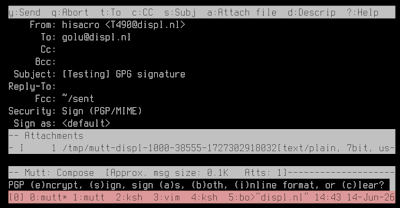
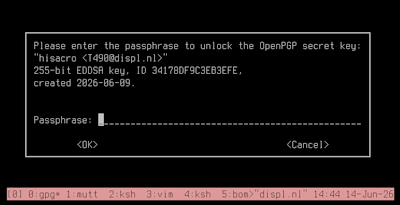
If the signing works properly then raw mail contains,
MIME-Version: 1.0
Content-Type: multipart/signed; micalg=pgp-sha256
protocol="application/pgp-signature"; boundary="8oxNx7XxpjxJOlmL"
Content-Disposition: inline


[-- PGP output follows (current time: Sun Jun 14 14:55:24 2026) --]
[-- End of PGP output -- ]

[-- The following data is signed --]

.. contents ...

[-- End of signed data --]
It's all set and good now to encrypt the world ;)